

Discover the latest trend! Digital Scrapbooking has come to stay!
Digital scrapbooking is really just another way to create your scrapbook pages and layouts. It is through your computer, and an excellent way to develop your hobby into new dimensions.
Most of us are now taking numerous photos with a mobile phone, which gives great opportunities for creating 100% of your projects through a computer!
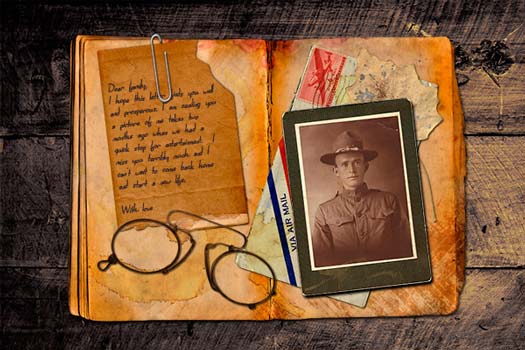
When you are finished with your project, it's easy to share your results with friends and family! You can upload a complete pages to social media or online galleries, send by email, or print out to collect in an album!
Have you ever noticed that most tidingar today generally have digital photos and pages?
Fun facts; Did you know that in digital scrapbooking is almost a separate language with acronyms? Read more here...
Most of us are now taking numerous photos with a mobile phone, which gives great opportunities for creating 100% of your projects through a computer!
When you are finished with your project, it's easy to share your results with friends and family! You can upload a complete pages to social media or online galleries, send by email, or print out to collect in an album!
Have you ever noticed that most tidingar today generally have digital photos and pages?
Fun facts; Did you know that in digital scrapbooking is almost a separate language with acronyms? Read more here...
What is needed to start?
- You need a photo editing program such as Adobe Photoshop, Adobe Photoshop Elements, Paint Shop Pro or similar programs. Many programs now offer a try on period so that you can feel out what suits you. In the video you will see examples of how to do in Photoshop.
- You need a photo editing program such as Adobe Photoshop, Adobe Photoshop Elements, Paint Shop Pro or similar programs. Many programs now offer a try on period so that you can feel out what suits you. In the video you will see examples of how to do in Photoshop.
- The size of your computer's operating memory is important because digital scrapbook layouts produces larger files. Have you a modern computer so this is no problem.
- A CD or DVD burner.
- A color printer with good quality so you can print out your work if you want.
- A digital camera and a scanner gives you more opportunities at work, but is not a must for you to be able to start with digital scrapbooking.
- A program that helps you to set up layouts can be a good tool (but not necessary). An example you will see in the video below.
Advantages of Digital Scrapbooking
- Storage, you have everything stored in your computer and have no space!
- Overview on what you have, and a lot less trouble finding all the material!
- If you have a scanner, you can actually scan your old photos and store them in your computer instead. Then you can at any time use them in your digital scrapbook layouts!
- Easy to create your own decorations and paper. You can also scan personal things, things that give your layout a unique touch.
- Computer Scrapbooking gives you great freedom when it comes Layouts:
-- Keep them in a digital scrapbooking albums.
-- Create complete slideshows adding to the music, talk, etc.
-- Opportunities to share with friends via email, blogs, burn to CD / DVD or a website.
-- Print out the different sizes and keep in regular scrapbook albums.
- If you have small children, there is always the worry that they will in no way get hold of your small scrapbooking gadgets which you avoid entirely with digital scrapbooking!
For older children it is easy to interest them in the computer scrapbooking due interest in their natural hosts. Can be a great way to do something together with your child!
- Any object can be used over and over again! Make it less expensive compared to regular scrapbooking!
- Pre-made kits are ganksa easy to find for Digital Scrapbooking. They contain plain paper, decorations, etc. Gives you the ability to quickly and easily create layouts by "drag and drop" on your layout.
- Simplicity at cutting / customize your photos, change color or light, but also to modify them in almost any way!
- It will take you just seconds to produce copies ....!
How to print and more ...
- First, the right paper is really the key here! Always use paper that is recommended for your printer. (Canon paper works best with Canon printers ...)
- When you use the photo paper so there are a number of different variants such as glossy, matte, etc. Each type of paper gives you a different "look and feel". Experiment to find what that suit your taste and your needs.
- Examples of acid-free and lignin-free photo paper, Epson's Matte Scrapbook Photo Paper 12x12 plus letter size. Epson also has double-sided paper made from 100% cotton.
- Always remember to let the paint dry 24 hours after you have printed your paper and layouts, to be on the safe side ...!
- There are many different inkjet printers on the market with different set ups. You can also find photo printers with archival safe inks.
- To create your own stickers is great fun! Buy self-adhesive inkjet paper and create decorations, tags, cards, and more.
- Try also to use some of the "artistic papers" designed specifically for inkjet printers. You will be delighted in these fantastic paper !!
There are fabric paper, linen-based paper, watercolor, and much more.
- If you have plans to buy a new printer, consider whether you would go for one with a large format! Why ?? Well, that would mean that you clear 12x12 format of the album and paper !!
- Do not forget that you can always hire local photo lab, or their online services to get your work utprintade, or on the file, perhaps in a wonderful hardcover book !?
Some tips when saving files
First; SAVE OFTEN! For high dissolved prints is 200-300 dpi recommended. Always test what works best for you.
- I recommend you save 3 different file versions for each layout:
1. To be able to go back and make changes, you need to store a "Layered" file of your layout, etc. Print NOT a "layered" file, it takes many pages ......
2. When you print or burn to a disc, you need to compress images, but keep them at the highest dpi which you were working. (200-300)
3. For E-mail and uploading on the Internet, compress and save 72 or 75 dpi, Easily done through "image size window" Some software programs have an option to save directly to the Web and makes automatically a compression to a jpg. format.
- A good advice is to store each of the 3 files in different folders to avoid confusion; Rename them to Web Pages, Printed Pages, Pages and Scrapbook Layouts, or something similar.
How to download digital scrapbooking materials
Well, this is not difficult at all! I recommend using WinZip or a similar program. You can download here, Winzip ...
Most of what you download is zipped so you can do then unzip the files and adjust to the correct size to use them.
After a file is zipped, you can save it in your folders. Do not forget to name it in a good way so it can be found again ....!
Do not forget to check the "read me" file before downloading respect copyright.
Getting Started In Digital Scrapbooking with Photoshop Elements 11
Organizing your photos with Windows Live Photo Gallery
- Storage, you have everything stored in your computer and have no space!
- Overview on what you have, and a lot less trouble finding all the material!
- If you have a scanner, you can actually scan your old photos and store them in your computer instead. Then you can at any time use them in your digital scrapbook layouts!
- Easy to create your own decorations and paper. You can also scan personal things, things that give your layout a unique touch.
- Computer Scrapbooking gives you great freedom when it comes Layouts:
-- Keep them in a digital scrapbooking albums.
-- Create complete slideshows adding to the music, talk, etc.
-- Opportunities to share with friends via email, blogs, burn to CD / DVD or a website.
-- Print out the different sizes and keep in regular scrapbook albums.
- If you have small children, there is always the worry that they will in no way get hold of your small scrapbooking gadgets which you avoid entirely with digital scrapbooking!
For older children it is easy to interest them in the computer scrapbooking due interest in their natural hosts. Can be a great way to do something together with your child!
- Any object can be used over and over again! Make it less expensive compared to regular scrapbooking!
- Pre-made kits are ganksa easy to find for Digital Scrapbooking. They contain plain paper, decorations, etc. Gives you the ability to quickly and easily create layouts by "drag and drop" on your layout.
- Simplicity at cutting / customize your photos, change color or light, but also to modify them in almost any way!
- It will take you just seconds to produce copies ....!
How to print and more ...
- First, the right paper is really the key here! Always use paper that is recommended for your printer. (Canon paper works best with Canon printers ...)
- When you use the photo paper so there are a number of different variants such as glossy, matte, etc. Each type of paper gives you a different "look and feel". Experiment to find what that suit your taste and your needs.
- Examples of acid-free and lignin-free photo paper, Epson's Matte Scrapbook Photo Paper 12x12 plus letter size. Epson also has double-sided paper made from 100% cotton.
- Always remember to let the paint dry 24 hours after you have printed your paper and layouts, to be on the safe side ...!
- There are many different inkjet printers on the market with different set ups. You can also find photo printers with archival safe inks.
- To create your own stickers is great fun! Buy self-adhesive inkjet paper and create decorations, tags, cards, and more.
- Try also to use some of the "artistic papers" designed specifically for inkjet printers. You will be delighted in these fantastic paper !!
There are fabric paper, linen-based paper, watercolor, and much more.
- If you have plans to buy a new printer, consider whether you would go for one with a large format! Why ?? Well, that would mean that you clear 12x12 format of the album and paper !!
- Do not forget that you can always hire local photo lab, or their online services to get your work utprintade, or on the file, perhaps in a wonderful hardcover book !?
Some tips when saving files
First; SAVE OFTEN! For high dissolved prints is 200-300 dpi recommended. Always test what works best for you.
- I recommend you save 3 different file versions for each layout:
1. To be able to go back and make changes, you need to store a "Layered" file of your layout, etc. Print NOT a "layered" file, it takes many pages ......
2. When you print or burn to a disc, you need to compress images, but keep them at the highest dpi which you were working. (200-300)
3. For E-mail and uploading on the Internet, compress and save 72 or 75 dpi, Easily done through "image size window" Some software programs have an option to save directly to the Web and makes automatically a compression to a jpg. format.
- A good advice is to store each of the 3 files in different folders to avoid confusion; Rename them to Web Pages, Printed Pages, Pages and Scrapbook Layouts, or something similar.
How to download digital scrapbooking materials
Well, this is not difficult at all! I recommend using WinZip or a similar program. You can download here, Winzip ...
Most of what you download is zipped so you can do then unzip the files and adjust to the correct size to use them.
After a file is zipped, you can save it in your folders. Do not forget to name it in a good way so it can be found again ....!
Do not forget to check the "read me" file before downloading respect copyright.
Getting Started In Digital Scrapbooking with Photoshop Elements 11
Organizing your photos with Windows Live Photo Gallery

